Help Center
Running System User Manual
Step-by-step guide for runners, event organizers, and administrators. Each section includes a picture of the screen you will use.
Introduction
Running System helps you manage running events end to end: public event listings, runner registration, payments, race-day check-in, results, an online store, and memberships.
Runner
Register for races, pay fees, view results, shop, and manage your profile.
Organizer
Manage assigned events, participants, and race-day operations — based on permissions set by admin.
Administrator
Create events, assign organizers, approve submissions, and manage the full platform.
How to Log In
Open the login page and sign in with the email and password provided by your organizer.
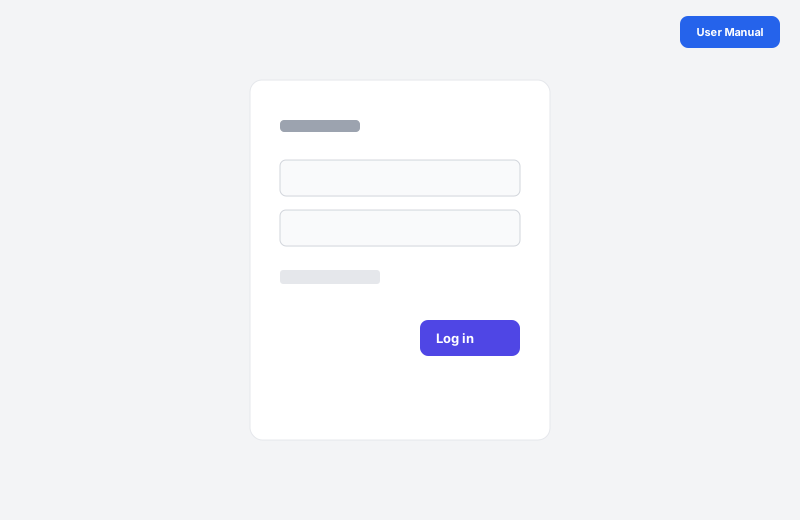
- 1 Go to the login page.
- 2 Enter your email address.
- 3 Enter your password.
- 4 Optional: tick Remember me to stay signed in on this device.
- 5 Click Log in.
Forgot password? Click Forgot your password? below the form to reset it by email.
User Roles
After login, the system sends you to the correct area based on your account type:
- Runner → Runner Dashboard (sidebar: Discover Events, My Registrations, Store, etc.)
- Organizer → Organizer Dashboard (sidebar: My Events, Submit Event, and optional Participants, Payments, Check-in, Results)
- Admin / Super Admin → Admin Dashboard (sidebar: Events, Organizers, Pending Approvals, Participants, etc.)
All logged-in roles can open Public Events from the sidebar to view the public event listing without leaving the app.
Organizer accounts are created by an administrator. You only see and manage events that have been assigned to you, with permissions chosen by admin (view, edit, participants, payments, check-in, results).
Runner Guide
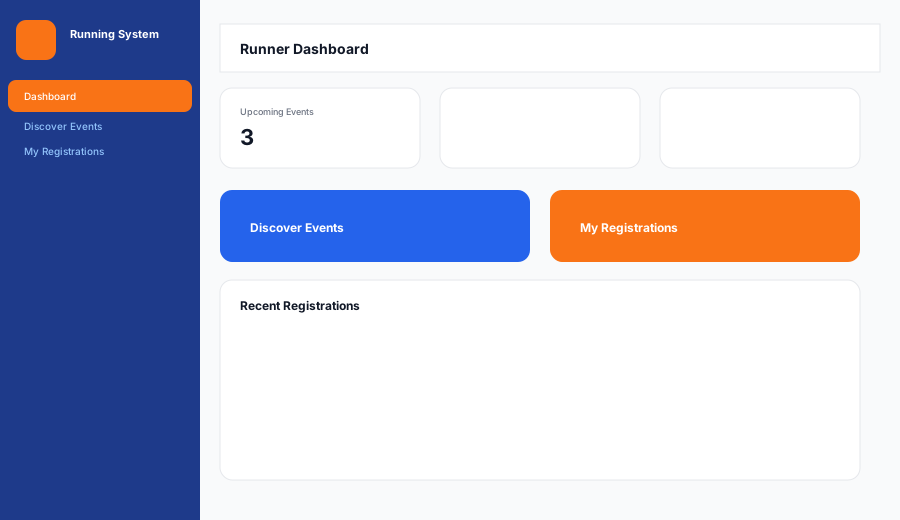
Dashboard
Your home screen shows upcoming events, events you joined, points earned, and quick links.
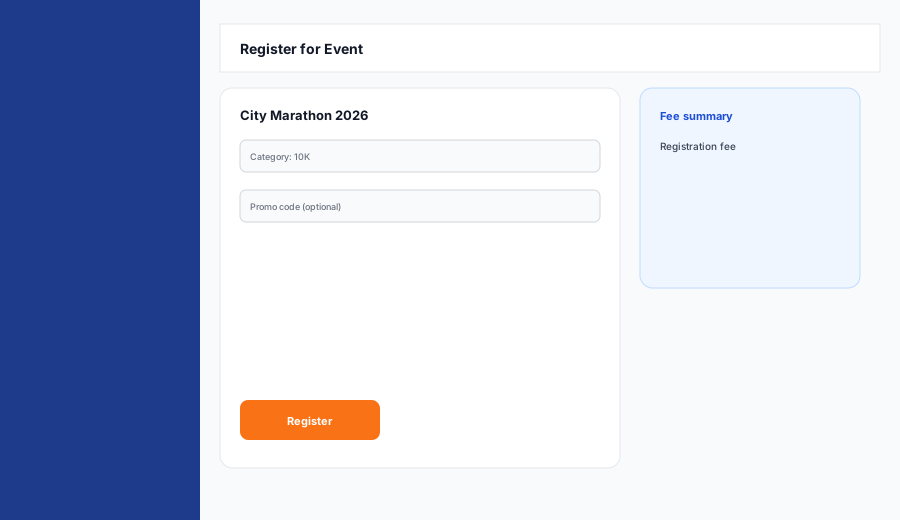
Register for an Event
- 1 Click Discover Events in the sidebar.
- 2 Choose an event and open its details.
- 3 Click Register (when registration is open).
- 4 Select your race category and fill in required details.
- 5 Apply a promo code if you have one, then submit.
- 6 Complete payment from My Registrations when prompted.
My Registrations
View all your sign-ups, payment status, bib number, and download your invoice or certificate when available.
Store & Membership
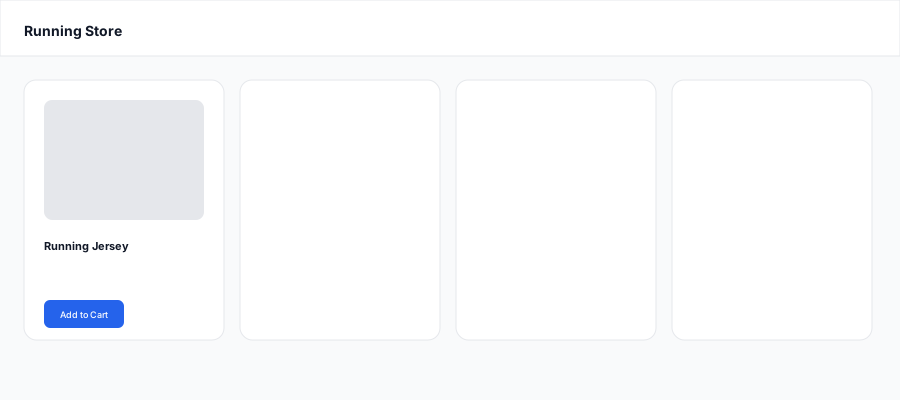
Browse products on the Store page, add items to cart, and checkout when logged in. Visit Membership to subscribe to a tier for benefits.
Other Runner Menu Items
- Event Calendar — see events on a calendar view.
- My Orders — track store purchases.
- My Profile — update personal info and change password.
Organizer Guide
Event organizers work on races assigned by an administrator. You cannot create published events on your own unless you submit a draft for approval (see below).
Dashboard
Your home screen shows how many events you are assigned to, any pending submissions awaiting admin approval, and a quick link to submit a new event.
My Events
Open My Events in the sidebar to see only the races assigned to your account. Click an event to view details and your permissions for that event.
- View — read event details and audit history.
- Edit — update title, description, dates, poster, and terms (when enabled).
- Participants — view registrations for your event.
- Payments — view payment records for your event.
- QR Check-in — scan or confirm check-in on race day.
- Results — view published race results.
Menu items appear in the sidebar only when admin has granted that permission for at least one of your events.
Edit an Assigned Event
- 1 Open My Events and select the event.
- 2 Click Edit (only if you have edit permission).
- 3 Update the allowed fields and save.
- 4 Changes are recorded in the event audit log.
Submit a New Event (Approval)
- 1 Click Submit Event in the sidebar.
- 2 Fill in event title, description, location, date, and optional poster.
- 3 Submit for approval — the event stays in draft until an admin approves.
- 4 After approval, you are automatically assigned to the event with full management permissions.
If your submission is rejected, open the event to read the admin’s reason, then contact admin or submit a revised event.
My Profile
Use the profile menu in the top bar (your name) to open My Profile and update your account details or password.
Email Notification
When an administrator assigns you to an event, you receive an email listing your permissions and a link to view the event.
Administrator Guide
Dashboard
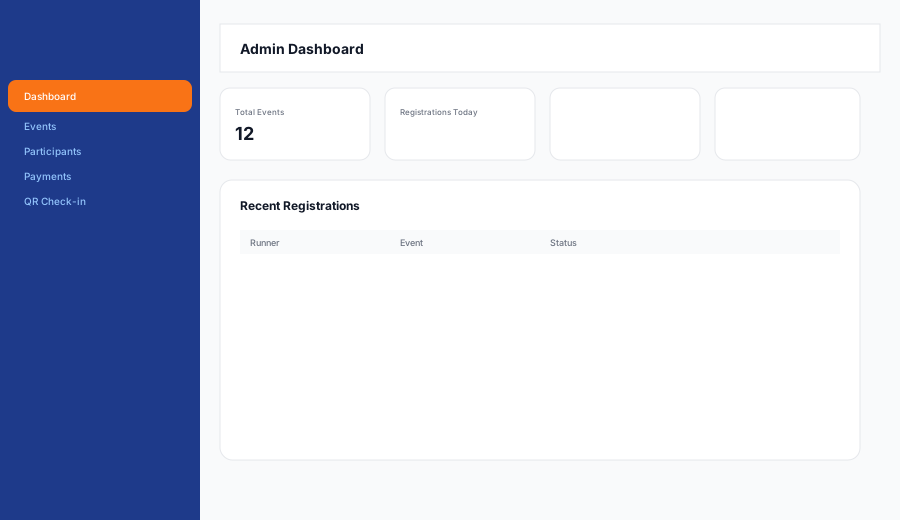
See total events, today’s registrations, revenue, runners, and recent sign-ups at a glance.
Organizers
- 1 Open Organizers in the sidebar to create organizer accounts (name, email, password).
- 2 Activate or deactivate an organizer from their profile page.
- 3 When editing an event, scroll to Assigned Organizers to add an organizer and tick permissions (view, edit, participants, payments, check-in, results).
- 4 The organizer receives an email when assigned.
Pending Approvals
Review events submitted by organizers under Pending Approvals. Approve to publish and auto-assign the submitter, or reject with a reason they can read on their event page.
Events & Categories
- 1 Events — create and edit races, set dates, fees, and registration open/close.
- 2 Categories — define distances or age groups (e.g. 5K, 10K, Half Marathon).
- 3 Use Toggle Registration on an event to open or close sign-ups quickly.
- 4 View Audit Log on an event detail page to see who changed what.
Participants
Search and filter registrations, assign bib numbers (including bulk bib assignment), export lists per event, and edit participant details.
Payments
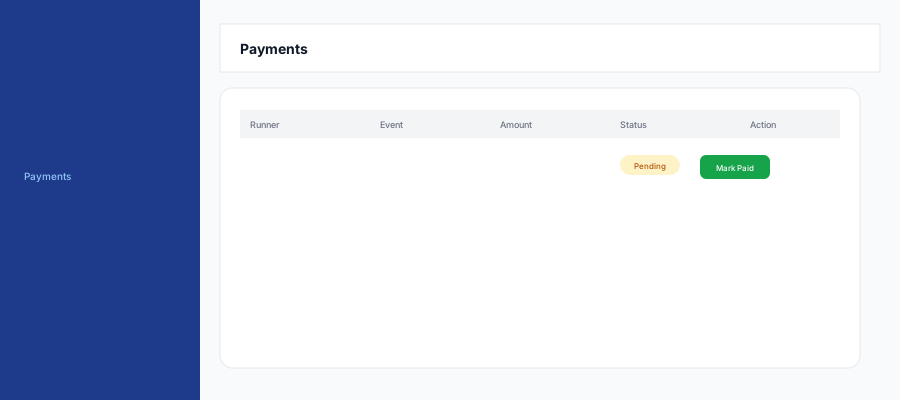
Review pending and completed payments. Mark a payment as paid when you receive offline transfer or cash.
Promo Codes
Create discount codes, set usage limits and expiry, and enable or disable them with the toggle switch.
QR Check-in (Race Day)
- 1 Open QR Check-in from the sidebar.
- 2 Select the event you are operating.
- 3 Scan the runner’s QR code with your device camera, or use Manual Check-in by name or bib number.
- 4 Confirm check-in when prompted.

Results
Import results (CSV), edit times, and publish results so runners and the public can view them on the event page.
Analytics
View registration and revenue reports per event. Export PDF or Excel when needed.
Runners
List registered runners, view profiles, and activate or deactivate accounts.
Website Section
- Landing Page — edit homepage hero, banners, and SEO text.
- Pages — manage static pages (About, Terms, etc.).
- Contact Messages — read messages from the contact form.
- Newsletter — view subscribers and export the list.
Store & Membership (Admin)
- Products — add/edit store items and toggle visibility.
- Store Orders — process customer orders.
- Membership Tiers — define plans and pricing.
- User Memberships — activate or deactivate member subscriptions.
Public Website (No Login)
Visitors can use these pages without signing in:
- Home — landing page with featured events and news.
- Events — browse all public events and view results.
- Store & Membership — browse products and plans (checkout requires login).
- Contact — send a message to the organizer.
- Join as Runner — create a new runner account from the registration page.
Tips & FAQ
I cannot log in. What should I check?
Verify your email and password. Use Forgot password if needed. Contact your admin if your account was deactivated.
Registration says closed — why?
The organizer may have closed registration or the event date has passed. Check back later or contact the event organizer.
Payment is pending — am I registered?
Your slot may be reserved but not confirmed until payment is complete. Finish checkout from My Registrations or wait for admin to mark offline payment as paid.
QR check-in camera not working?
Allow camera permission in your browser. Use Manual Check-in with the runner’s name or bib number as a backup.
I am an organizer but I do not see any events.
An administrator must assign you to an event first. Check My Events after assignment, or submit a new event via Submit Event and wait for approval.
Why can I view an event but not edit it?
Permissions are set per event by admin. View-only access means you can open the event page but not change details. Ask your administrator to enable Edit or other permissions on the event.
Need more help? Contact your system administrator or use the Contact page on the public website.